Google Ads
Google Performance Max Banner Sizes: Image Specs, Safe Zones & Creative Checklist (2026)
By David Bejan · July 20, 2026
Last verified July 20, 2026
Google Performance Max does not work like a traditional Display campaign where you upload a separate 300 × 250, 728 × 90, or 160 × 600 banner.
Instead, you provide a collection of image, logo, text, and video assets. Google combines those assets into ads that can serve across Search, YouTube, Display, Discover, Gmail, Maps, and other eligible inventory.
That distinction matters.
When people search for Performance Max banner sizes, they are usually looking for the image dimensions they need to design. But the files prepared for PMax are responsive creative assets, not standalone fixed-size banners.
This guide gives you the current Performance Max image and logo dimensions, explains what is required versus recommended, shows how the center-80% safe zone works, and provides a practical workflow for turning one approved creative into a complete PMax asset set.
Table of contents
- Quick answer: Performance Max banner sizes for 2026
- Performance Max assets are not traditional banner files
- Which Performance Max image sizes are required?
- The center-80% safe zone
- Can Performance Max images include text and logos?
- Performance Max logo sizes
- Google may automatically modify your images
- Performance Max versus Google Display banner sizes
- How to turn one approved creative into a PMax image set
- A complete Performance Max asset checklist
- Common mistakes
- Frequently asked questions
Quick answer: Performance Max banner sizes for 2026
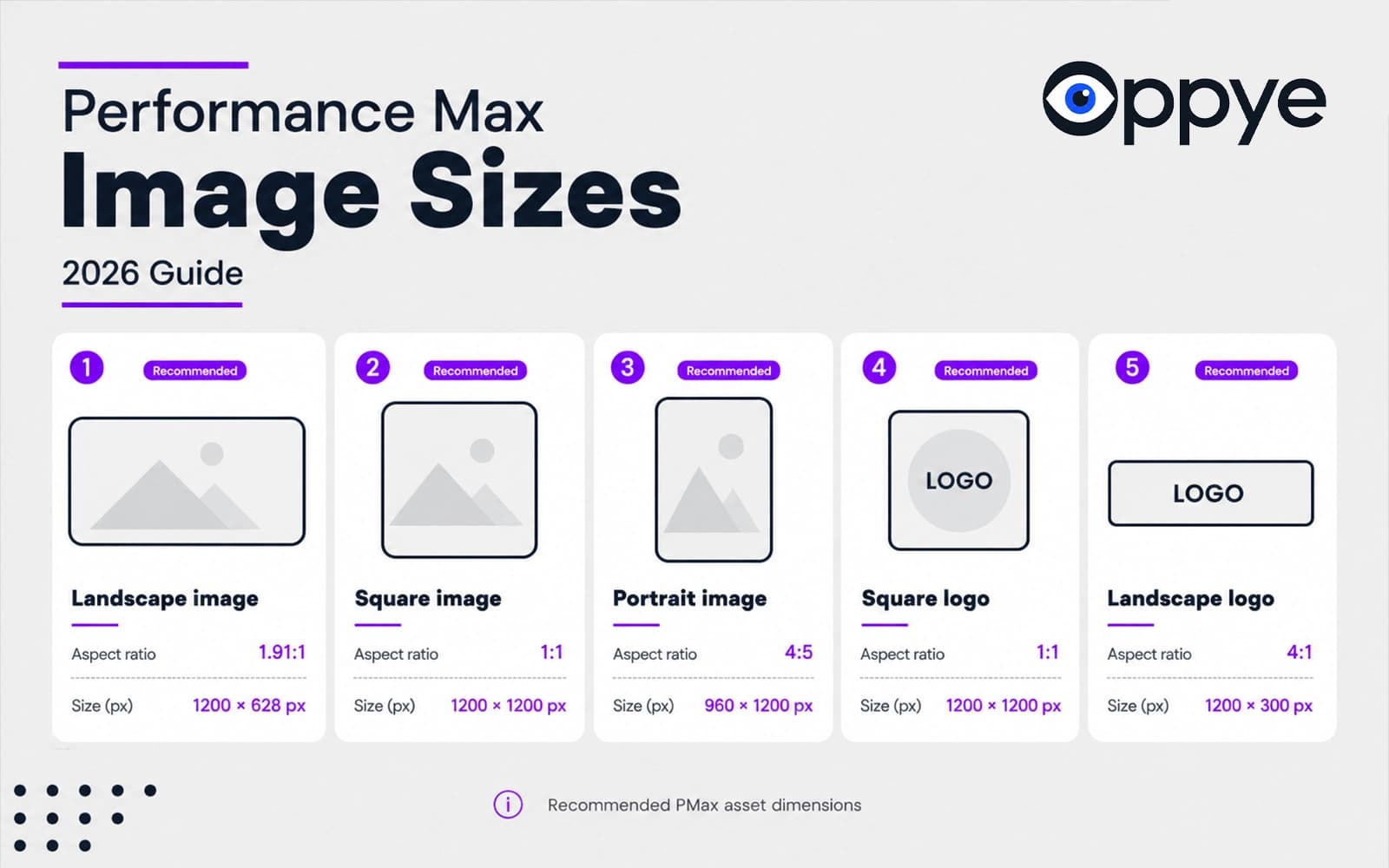
For a complete Performance Max image set, create these five asset types:
| Asset | Aspect ratio | Recommended size | Minimum size | Required? | Google recommendation |
|---|---|---|---|---|---|
| Landscape image | 1.91:1 | 1200 × 628 px | 600 × 314 px | Yes | 4 or more images |
| Square image | 1:1 | 1200 × 1200 px | 300 × 300 px | Yes | 4 or more images |
| Portrait image | 4:5 | 960 × 1200 px | 480 × 600 px | No | 2 or more images |
| Square logo | 1:1 | 1200 × 1200 px | 128 × 128 px | Yes | 1 logo |
| Landscape logo | 4:1 | 1200 × 300 px | 512 × 128 px | No | 1 logo |
Images must be JPG or PNG and no larger than 5 MB. Keep important content inside the center 80% of each image. Google allows up to 20 marketing images in an asset group and up to five logos. Source: Google Ads Help — image assets for Performance Max.
The required status above applies to an asset group without a linked Merchant Center feed. Retail advertisers with a Merchant Center feed can launch without manually supplying additional creative assets, although Google recommends adding them to improve creative coverage across eligible surfaces. Source: Google Ads Help — build an asset group.
Performance Max assets are not traditional banner files
A traditional uploaded Google Display ad is a complete, fixed-size file. A 300 × 250 banner is designed, exported, and uploaded as a 300 × 250 banner. The headline, image, logo, and CTA are already placed inside the final canvas.
Performance Max works differently.
You upload modular assets:
- marketing images;
- logos;
- short headlines;
- long headlines;
- descriptions;
- calls to action;
- videos.
Google can mix and match assets from the same asset group to create ads for the channel, placement, device, audience, and campaign objective. An asset group is therefore best understood as a themed creative kit rather than a folder of finished banner files. Source: Google Ads Help — how asset groups work.
This is why you do not normally prepare a classic 728 × 90 leaderboard specifically for a Performance Max asset group. You prepare strong landscape, square, and portrait source assets, and Google assembles eligible combinations for available inventory.
Which Performance Max image sizes are required?
For an asset group without a Merchant Center feed, the minimum image set includes:
- one landscape marketing image;
- one square marketing image;
- one square logo.
The portrait image and landscape logo are optional at publishing level, but they are still valuable. Google currently recommends:
- four or more landscape images;
- four or more square images;
- two or more portrait images;
- one square logo;
- one landscape logo.
Source: Google Ads Help — Performance Max image best practices.
A sensible production target is therefore 10 marketing images plus two logo formats per asset group.
That does not mean creating ten almost identical crops. Each file should provide a meaningful creative variation, such as:
- product close-up;
- product in use;
- lifestyle scene;
- benefit-led visual;
- offer-led visual;
- brand-led visual;
- category or collection image;
- customer outcome;
- seasonal concept;
- clean image without graphic overlays.
Google documents a maximum of 20 marketing images in the asset group, not 20 landscape plus 20 square plus 20 portrait images. Logos have a separate maximum of five.
The Performance Max center-80% safe zone
Google requires important content to sit inside the center 80% of the image so that it is less likely to be cut off across devices and placements.
In practical design terms, treat that as approximately 10% safety padding on every edge.
| Canvas | Approximate central safe area | Practical edge clearance |
|---|---|---|
| 1200 × 628 landscape | 960 × 502 px | 120 px left/right and about 63 px top/bottom |
| 1200 × 1200 square | 960 × 960 px | 120 px on every edge |
| 960 × 1200 portrait | 768 × 960 px | 96 px left/right and 120 px top/bottom |
These measurements are a practical translation of Google's center-80% rule. They do not replace the ad preview inside Google Ads.
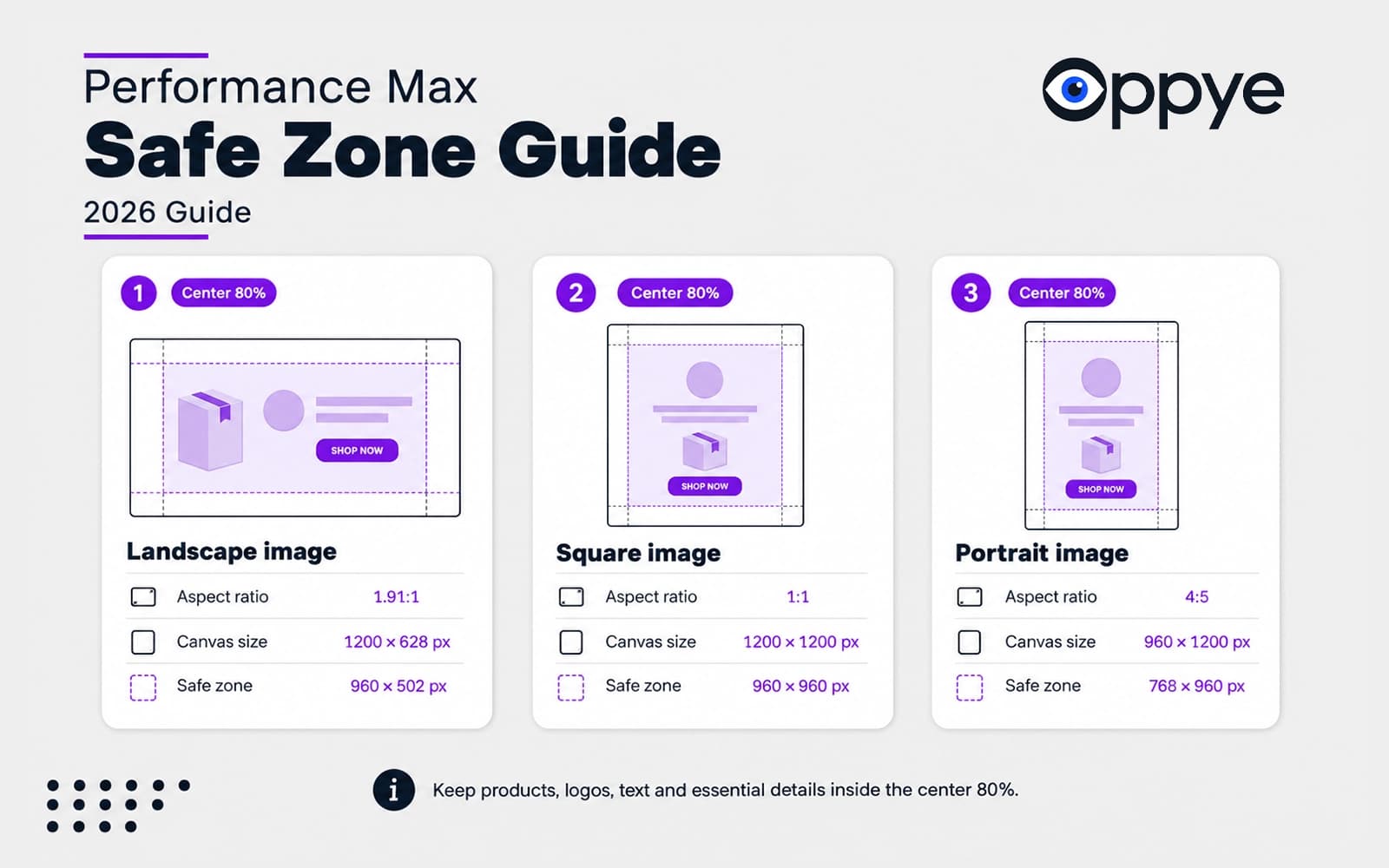
Keep these elements inside the safe area:
- the main product or subject;
- offer text;
- brand marks that are part of the image;
- legally required information;
- important labels;
- any visual detail required to understand the ad.
Background textures, decorative shapes, gradients, secondary imagery, and non-essential elements can extend beyond it.
Can Performance Max images include text and logos?
Yes. Google allows image assets with text and graphic overlays.
But a stronger asset set normally includes two types of images.
Clean image variants
These contain the product, person, environment, or visual concept without baked-in headlines, CTAs, or promotional graphics.
Clean variants give Google more flexibility to combine the visual with separate headline, description, CTA, and logo assets.
Branded image variants
These may include a short offer, visual frame, brand color, product label, restrained logo treatment, or a small amount of supporting copy.
Branded variants provide more control when the visual itself needs to communicate the campaign idea.
The practical rule is not "never use text" and not "put the whole ad inside every image." Supply clean options alongside deliberately branded options.
Avoid turning every image into a miniature poster. Copy that looks comfortable at 1200 pixels wide may become unreadable when the asset appears inside a smaller placement.
Performance Max logo sizes and common logo problems
The required square logo uses:
- 1:1 aspect ratio;
- 1200 × 1200 px recommended;
- 128 × 128 px minimum.
The optional landscape logo uses:
- 4:1 aspect ratio;
- 1200 × 300 px recommended;
- 512 × 128 px minimum.
Google notes that transparent logos may be displayed on a white background. A predominantly white logo on transparency can therefore disappear or lose contrast.
Upload a clear square logo and consider a version with a controlled background or sufficient contrast for light placements.
Also avoid exporting a tiny logo inside a very large field of empty space. Google's image enhancement system may crop excessive margins to zoom in on the mark. Source: Google Ads Help — image assets for Performance Max.
Google may automatically modify your images
Performance Max can use automated image enhancements. New campaigns are opted into image enhancements by default.
Depending on campaign settings and asset eligibility, Google may:
- smart-crop an image;
- apply text or logo overlays;
- improve image resolution;
- expand an image;
- animate a static image;
- add a background;
- reformat the asset for another device or placement.
These controls are available under the campaign's asset optimization settings. Source: Google Ads Help — automatically enhanced images.
Automation can increase coverage, but it deserves careful review when:
- product packaging must remain exact;
- logos have strict clear-space rules;
- regulated copy must remain visible;
- the subject or product must not be altered;
- the brand has strict typography or composition guidelines;
- the promotion contains exact prices or conditions.
For brand-sensitive campaigns, inspect the previews and make a deliberate decision about Image Enhancement and Landing page images rather than leaving the settings unreviewed.
Performance Max sizes versus Google Display banner sizes
This is the distinction that causes the most confusion.
| Performance Max image asset | Uploaded Google Display banner | |
|---|---|---|
| Creative model | Modular and responsive | Complete fixed-size ad |
| Typical dimensions | 1200 × 628, 1200 × 1200, 960 × 1200 | 300 × 250, 728 × 90, 160 × 600, 300 × 600 |
| File types | JPG or PNG | GIF, JPG, or PNG |
| Maximum file size | 5 MB | 150 KB for uploaded image ads |
| Layout assembly | Google combines images, logos, and text | The complete layout is already built |
| Production approach | Design by aspect-ratio family | Design every exact pixel size |
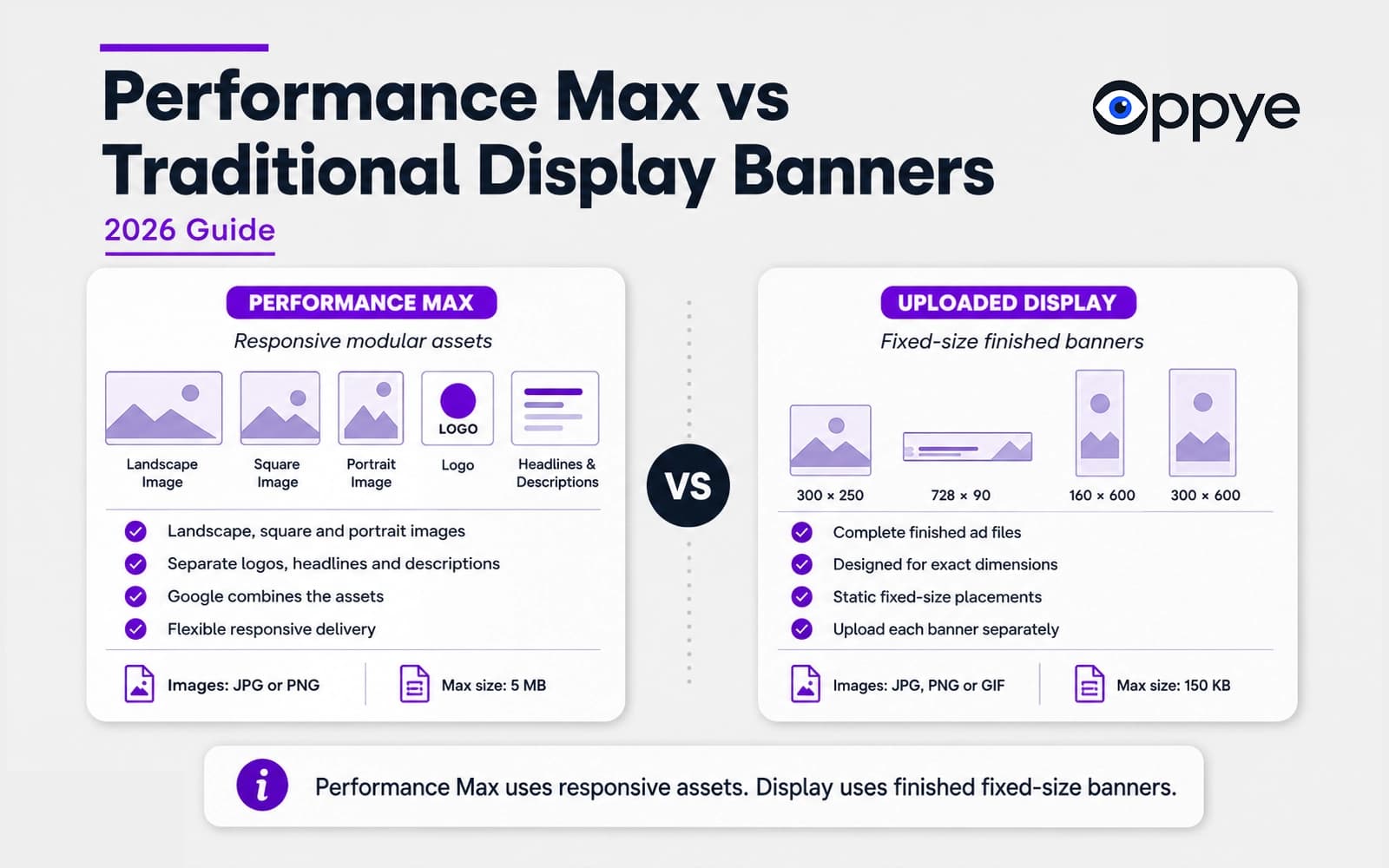
A 300 × 250 file is not one of the standard marketing image assets uploaded to a Performance Max asset group. It is a fixed uploaded Display ad size.
Performance Max can still serve on Display inventory, but Google assembles eligible ads from the asset group rather than asking you to upload every traditional banner dimension individually.
Google's fixed uploaded Display specifications include formats such as 300 × 250, 336 × 280, 728 × 90, 160 × 600, 300 × 600, 320 × 50, and 320 × 100, with a maximum image file size of 150 KB. Source: Google Ads Help — uploaded Display ad specifications.
For a campaign using both Performance Max and uploaded Display ads, you need two related but different production sets.
Performance Max set:
- 1200 × 628 landscape;
- 1200 × 1200 square;
- 960 × 1200 portrait;
- square and landscape logos.
Uploaded Display set:
- 300 × 250;
- 336 × 280;
- 728 × 90;
- 160 × 600;
- 300 × 600;
- 320 × 50;
- 320 × 100;
- any other fixed dimensions required by the media plan.
For the wider multi-platform workflow, read how to turn one ad into every size your campaign needs.
How to turn one approved creative into a PMax image set
The fastest production workflow is not to crop one image into three canvases. It is to re-compose the same campaign concept for each aspect ratio.
1. Start with the strongest available master
Use the highest-quality approved artwork available. A clear composition with a distinct subject, product, headline, logo, and background adapts better than a dense collage.
A flat JPG or PNG can still work. You do not necessarily need the original layered file.
2. Identify the non-negotiable elements
Before adapting the creative, decide what must remain unchanged:
- logo;
- product or subject;
- packaging;
- brand colors;
- campaign offer;
- required legal copy;
- distinctive visual devices.
This prevents the resizing process from treating every pixel as equally flexible.
3. Re-compose for landscape, square, and portrait
A landscape asset has horizontal room but limited height. It may place the message on one side and the subject on the other.
A square asset usually needs a more compact and balanced hierarchy.
A portrait asset can stack elements vertically, enlarge the subject, and use more depth.
The composition should change. The campaign identity should not.
4. Build real creative variation
Do not fill the asset group with nearly identical copies.
Vary the idea while maintaining the same campaign theme:
- clean versus branded;
- product versus lifestyle;
- close-up versus wider environment;
- offer-led versus benefit-led;
- light versus dark composition;
- one product versus a collection.
Every image should still make sense with the headlines and descriptions inside the same asset group.
5. Export to the recommended dimensions
Use:
- 1200 × 628 px for landscape;
- 1200 × 1200 px for square;
- 960 × 1200 px for portrait;
- 1200 × 1200 px for the square logo;
- 1200 × 300 px for the landscape logo.
Export as JPG or PNG, remain below 5 MB, and check that critical elements sit inside the center safe area.
6. Review combinations, not only individual files
An image may work well by itself and fail when paired with a particular headline, logo, or CTA.
Use Google Ads preview to inspect the available combinations across channels and devices.
Check for:
- text collisions;
- duplicated logos;
- repeated offers;
- weak contrast;
- accidental crops;
- mismatched landing pages;
- image and headline combinations that tell different stories.
7. Give the campaign time before replacing assets
Google recommends waiting two to three weeks before deciding to replace low-performing assets. Ad Strength, asset status, and performance data need time to update after edits. Source: Google Ads Help — asset group best practices.
Producing Performance Max assets with Oppye
Oppye is built for the production stage after you already have an approved creative.
Upload the flat artwork, select the Performance Max formats, and create:
- 1200 × 628 landscape;
- 1200 × 1200 square;
- 960 × 1200 portrait.
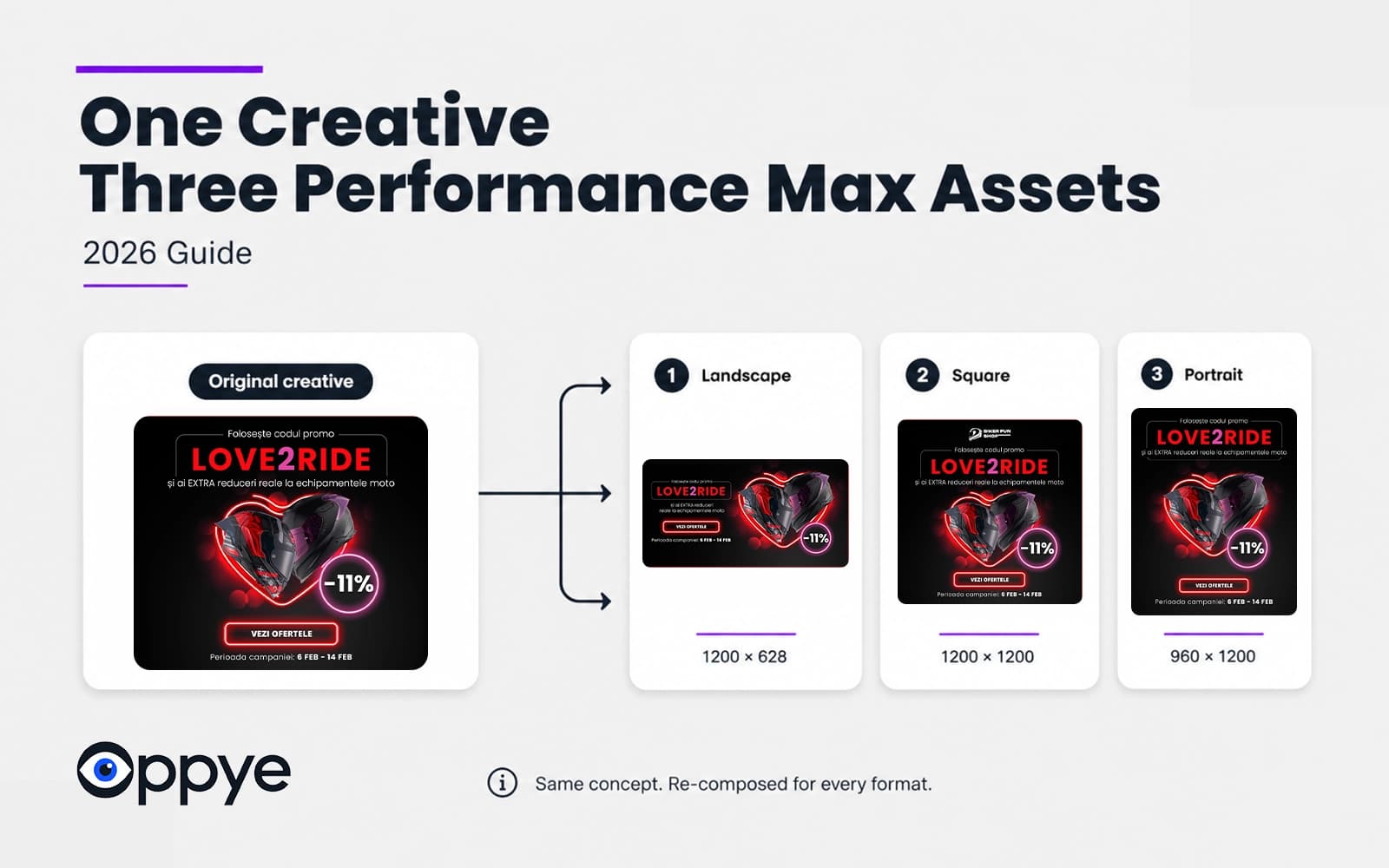
Instead of forcing the source through three blind crops, Oppye re-composes the layout for each shape while preserving the logo, copy, product, colors, and campaign identity. You can review, refine, and export each result before uploading it to Google Ads.
This workflow is especially useful when:
- the original was created in Photoshop, Figma, Illustrator, or Canva;
- you only received a finished PNG or JPG from a client;
- several campaign concepts need to be adapted at once;
- the same approved idea also needs Meta, LinkedIn, or fixed Display versions;
- repetitive production is delaying launch.
See the Oppye documentation for supported formats and workflow details, or compare plans and credits.
A complete Performance Max asset checklist
Image dimensions are only one part of the asset group.
Google currently recommends the following creative coverage:
| Asset type | Recommended amount or format |
|---|---|
| Short headlines | 11 or more |
| Long headlines | 2 or more |
| Descriptions | 4 or more |
| Landscape images | 4 or more |
| Square images | 4 or more |
| Portrait images | 2 or more |
| Square logo | 1 |
| Landscape logo | 1 |
| Custom video | Horizontal, square, and vertical versions where possible |
Short headlines have a maximum of 30 characters. Google recommends including at least one headline of 15 characters or fewer. Long headlines and descriptions have a maximum of 90 characters. Source: Google Ads Help — Performance Max specifications.
Current video specifications support:
- horizontal 16:9;
- square 1:1;
- vertical 9:16;
- a duration of at least 10 seconds.
If you do not upload a video, Google may automatically generate one from other assets. Google states that uploading custom videos in all three orientations is required to achieve Excellent Ad Strength and prevent automatic AI video generation where that feature applies. Source: Google Ads Help — Performance Max specifications.
Before publishing an asset group, check that:
- every asset belongs to the same theme;
- images and text can be combined without contradiction;
- the landing page matches the offer;
- the product shown matches the promoted product;
- logos remain legible;
- the safe area is respected;
- the set includes both clean and branded options;
- automation settings have been reviewed;
- custom videos are added when brand control matters.
Common Performance Max image mistakes
Treating PMax like a set of fixed Display banners
A 300 × 250 or 728 × 90 file belongs to the uploaded Display workflow, not the standard PMax image asset set.
Uploading only square images
Square is required and versatile, but portrait and landscape assets provide better coverage for different eligible formats.
Cropping one master mechanically
A blind center crop can remove the product, logo, offer, or visual context. Each ratio needs a deliberate composition.
Putting important content at the edges
Elements near the border are more vulnerable to cropping and automated placement treatment.
Baking the complete ad into every image
Google can combine separate copy, logo, and CTA assets. Supply clean image options alongside branded variants.
Uploading near-duplicates
A larger asset count does not automatically create useful variation. Each image should contribute a meaningful angle.
Using a white transparent logo without a fallback
The logo may be rendered against a white background and lose visibility.
Replacing assets too quickly
Allow enough time for status and performance data to develop before making creative decisions.
Frequently asked questions
What are the correct Performance Max banner sizes?
Use 1200 × 628 px for landscape images, 1200 × 1200 px for square images, and 960 × 1200 px for portrait images. Add a 1200 × 1200 px square logo and, ideally, a 1200 × 300 px landscape logo.
Is 1080 × 1080 accepted in Performance Max?
A 1080 × 1080 image uses the correct 1:1 ratio and exceeds Google's 300 × 300 minimum. Google's current recommended square size is 1200 × 1200 px.
Do I need a 300 × 250 banner for Performance Max?
Not as a standard Performance Max marketing image. The 300 × 250 format is a fixed uploaded Google Display ad size. Performance Max uses responsive images, text, logos, and video assets that Google combines into eligible formats.
Is the 4:5 portrait image required?
No. The portrait image is optional at publishing level for a standard asset group, but Google recommends adding two or more 960 × 1200 px portrait images.
How many images can I upload?
An asset group can contain up to 20 marketing images in total. Google recommends four or more landscape images, four or more square images, and two or more portrait images.
Can Performance Max images contain text?
Yes. Text and graphic overlays are allowed, but the set should also include clean image variants so Google can combine the visual with separate text and logo assets.
What is the Performance Max safe zone?
Google requires important content to remain inside the center 80% of the image. A practical design rule is to reserve approximately 10% clearance on each edge.
What is the maximum file size?
Performance Max marketing images and logos can be up to 5 MB and should be saved as JPG or PNG files.
Does Google crop Performance Max images?
Google may smart-crop, expand, reformat, or otherwise enhance images when the relevant automation settings are enabled. Keep important elements inside the center 80% and review the campaign's asset optimization settings.
Do Performance Max campaigns require video?
A custom video is not required to publish every campaign, but Google may automatically generate one if you do not provide it. Supplying your own horizontal, square, and vertical videos gives you greater control over brand, pacing, message, and product representation.
Final checklist
Before sending Performance Max creative live, make sure you have:
- 1200 × 628 px landscape images;
- 1200 × 1200 px square images;
- 960 × 1200 px portrait images;
- a clear 1200 × 1200 px square logo;
- a 1200 × 300 px landscape logo;
- JPG or PNG files below 5 MB;
- all critical content inside the center 80%;
- clean and branded image variants;
- meaningful creative variation;
- reviewed image enhancement settings;
- checked ad combinations and landing pages;
- a plan to evaluate assets after sufficient learning time.
The dimensions are the easy part.
The more valuable part is making every ratio feel like the same approved campaign instead of three unrelated crops.
Already have the master creative? Start free with Oppye and re-compose it into the landscape, square, and portrait formats required for your Performance Max asset group.
Related reading
- How to Turn One Ad Into Every Size Your Campaign Needs — the exact 2026 specs for Meta, Google Display, LinkedIn, and Performance Max, and the four aspect ratios that cover almost everything.
- Canva Magic Resize Alternative for Ads — when template-tool resizing is enough, and when ad production needs re-composition instead.
- Oppye documentation — supported formats, how credits work, and how the quality review protects your brand elements.
- Pricing — plans, credits, and what's included.
Sources and revision policy
This guide is based on Google Ads Help documentation covering Performance Max image assets, campaign specifications, asset groups, automated image enhancements, and uploaded Display ads.
Specifications were last reviewed on July 20, 2026. Advertising platform requirements can change, so this page should be reviewed whenever Google updates its official asset documentation.
- About image assets for Performance Max campaigns
- Performance Max campaign specifications and format requirements
- Best practices for Performance Max image assets
- Build a Performance Max asset group
- Best practices for Performance Max asset groups
- About Performance Max automatically enhanced images
- Uploaded Google Display ad specifications
Written by
David BejanFounder of Oppye
David Bejan is the founder of Oppye and a graphic designer focused on ad creative production. He writes about resizing, repurposing, and scaling campaign creative across platforms.